Mouse vs Keyboard Virtual Guitar for Fast Chord Testing
A browser guitar solves a very specific problem. You have a chord idea, a short progression, or a quick melodic question, but there is no physical guitar in reach. Instead of opening a full production setup, you just want a fast way to hear whether the idea works.
That is where input choice matters. On this site, the browser guitar can be played with the mouse or the keyboard. Both options are useful, but they help with different parts of the process.
The mouse is usually better for orientation. The keyboard becomes more useful when the shape is already clear and the idea needs repetition. Once that difference is clear, testing a chord becomes faster and less frustrating.
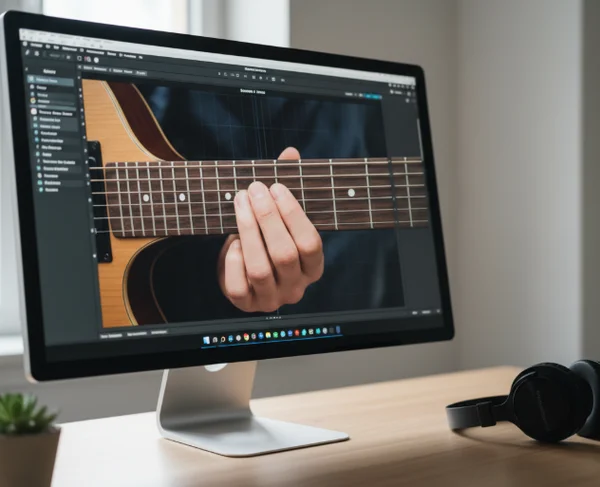
Why input choice changes a fast chord check
The sound source stays the same. What changes is how the hand reaches it. That affects how quickly you can see the strings, repeat a shape, and judge whether the chord idea feels stable.
Mouse input keeps the screen in charge. It is visual, direct, and easy to understand when the goal is simply to find the right string or fret area. That makes it a good first move for new users and casual songwriters who only need a quick check.
Keyboard input shifts the task. Once the user already knows what to test, the keyboard removes some screen travel and makes repetition easier. That matters when the question is no longer where is the note? and becomes does this chord movement still sound right after three or four passes?
When mouse clicks work better on a virtual guitar
Mouse clicks work best when the chord is still a rough idea. The visible strings and frets act like a map, so the hand can follow the screen instead of memorizing positions first.
That is especially useful on a site built around immediate visual interaction. The homepage shows 6 strings and 18 frets. That gives users enough space to test a basic shape and compare low and high strings before speed becomes important.
Use the mouse to see string spacing before chasing speed
Start by using the screen as a navigation tool. Click one string at a time, then compare how nearby positions change the sound.
HyperPhysics summarizes standard six-string tuning as [E2-A2-D3-G3-B3-E4] from the lowest string to the highest. That matters in a virtual layout because the mouse makes it easier to connect the visible string order with the sound you hear.
Mouse input is also good for basic contrast testing. You can click a low string note, then a higher string note, and decide whether the chord idea needs more weight, more brightness, or a different starting note.
The weakness appears when the same shape needs to happen repeatedly. Reaching across the screen for every pass slows the test down, and the rhythm starts to matter more than the original chord question.
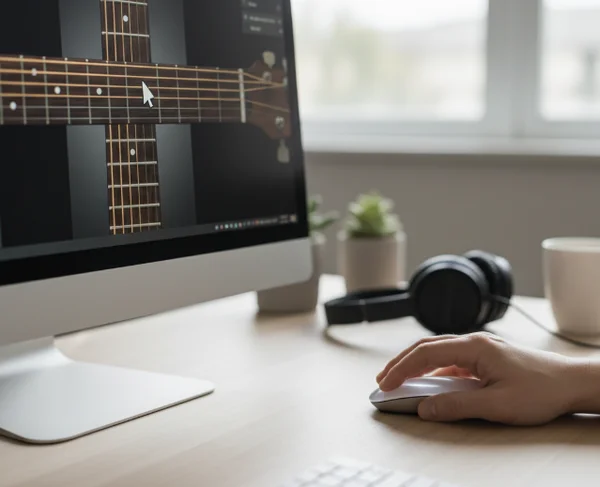
When keyboard input feels faster for repeating a chord idea
Keyboard input works better once the target shape is already clear enough to repeat. The hands can stay ready, which makes it easier to compare one pass with the next.
This matters because small fret moves change the result quickly. HyperPhysics also explains that adjacent guitar frets are a semitone apart, so moving by just one fret changes the pitch by one half step. When you are checking whether a chord feels tense, bright, darker, or more stable, that small movement is easier to compare when the input method supports repetition.
Start with one simple shape and keep the rhythm steady
The keyboard becomes useful when the test needs consistency rather than exploration. Instead of locating every string with the pointer again, stay close to one motion. Then listen for whether the chord still feels right on the next few passes.
That does not mean you need a complex pattern. In fact, simple rhythm usually gives clearer answers. If the strum shape is too busy, it becomes harder to tell whether the chord itself works or whether the rhythm is distracting you.
This is where the online guitar tool shifts from a visual map into a lightweight checking space. Once the hand motion stays smaller, the ear has more room to notice whether the chord move sounds smooth or awkward.
Keyboard input also helps when a user wants to compare two nearly identical shapes. If one fret changes by a semitone, the difference can be subtle. Repeating both versions with a steadier motion makes the decision easier.
How to switch between mouse and keyboard without losing the idea
The best workflow is often a short hybrid. Use the mouse first to find the area, then move to the keyboard once the chord question is clear.
That approach fits the site's lightweight purpose. The tool is not trying to be a full lesson system, a tab library, or a recording workspace. It is good at quick interaction, quick checking, and quick return visits.
Test the chord with the mouse, repeat it with the keyboard
Keep the test narrow. Pick one shape or one short change, not a full progression with too many moving parts.
A Kansas State guitar-teaching handout recommends that beginners [practice slowly and steadily] before adding more material. That advice also works for virtual chord testing. If a simple idea already sounds unclear at a slow pace, adding more rhythm or extra notes usually makes the decision harder, not easier.
A practical routine works well here. Use the virtual guitar workspace to click the first version of the chord, confirm the string area, then switch to the keyboard for two or three repeated passes. If the shape still sounds convincing after the repeated test, keep it. If it falls apart, go back to the screen and adjust one part at a time.
This method keeps the session honest. Mouse input answers location questions. Keyboard input answers repetition questions. When each input has a clear job, the chord check stays fast.
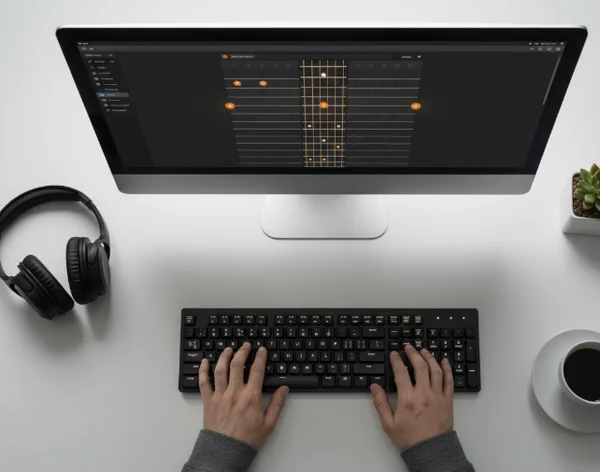
Key Takeaways: Choose the input that keeps the chord clear
There is no single best input for every moment. Mouse clicks are better when you need visual orientation and quick string-to-string checking. Keyboard input is better when the shape is already known and the goal is hearing it repeated with less interruption.
If the idea is still fuzzy, open the browser fretboard and start with visible clicks. If the chord is already taking shape, switch to the keyboard and let repetition do the work. The better choice is the one that keeps the chord easy to hear instead of making you think about the interface.